CMS Tutorial
The CMS (content management system) is used for faculty department and workplace websites, as well as for personal websites of faculty staff. It enables the editing and publication of static web pages, the management of their structure and access permissions (imagine you want to display the content of a Word document on a certain URL address). The goal is to provide departments, workplaces and employees with an easy-to-use system for managing their content and maintaining a consistent look across all faculty websites. Internal development enables IT Centre to 'program' more complex requirements as needed, which would be difficult in WordPress, for example.
As well as enabling the editing of static pages, the CMS supports dynamic content, which is generated from data stored in the database, in the form of modules. Currently, modules are available for managing dated articles and news items, image and document galleries, user logins and tracking user activity. Additional modules with dynamic content can be prepared upon agreement, such as employee lists generated from Usermap, course lists from KOS and contact form.
To set up a website, please contact FCE IT Centre. Provide the desired URL and the person who should have access to the website administration. An empty website with an administration module will then be set up. The administrator will then have the option to configure various website settings, install modules, create new pages, edit them and incorporate them into the website structure.
Website


The examples use the website of the fictional K199 department. The menu on the left contains links to pages organized by the structure defined by the website administrator. Below these are a search field and the name of the logged-in user. As an administrator, the user also has quick links to edit the current page's content and settings, and the option to upload files is also available. At the bottom, there is a switch for the language version of the website and an option to choose between light and dark display.
Website settings
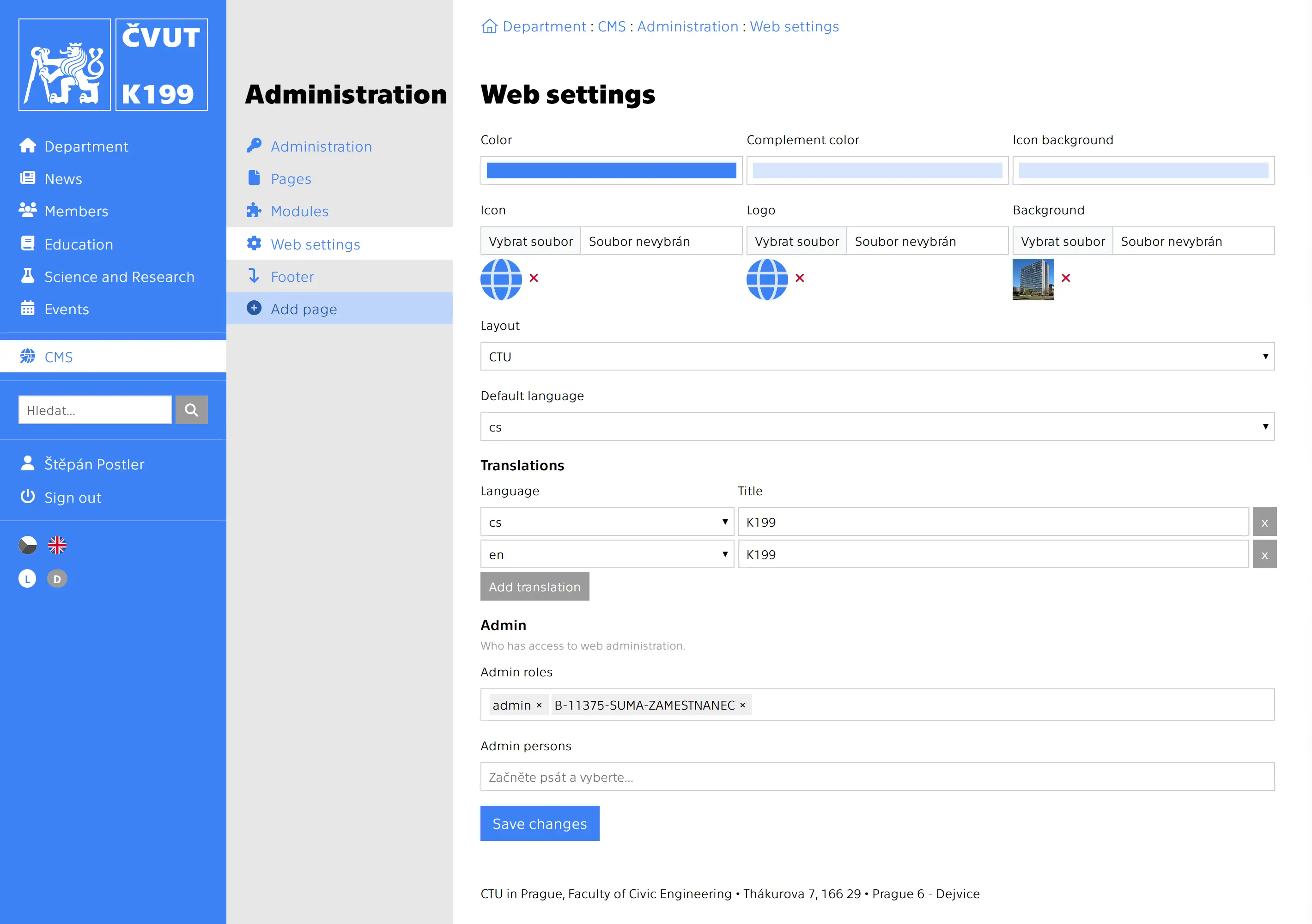
https://[DOMAIN]/en/cms/administration/web-settingsHere, you can find options for customising your website. You can change the basic color of the website and links, or the icon that appears in the browser tab. In the 'Translations' section, you can add an English version, for example.
- Color: Background of the main menu and color of links.
- Icon background: When using an SVG icon, you can set its background color.
- Icon: The image that appears in the browser tab or when saving a link to the website.
- Background: The image that appears on the right side of the website.
- Layout: The CMS allows you to change the layout of the pages. Currently, only the basic FCE layout is available.
- Translations: By default, the website is only available in Czech. Here, you can create additional language versions of the website.
- Administrator: Users and IDM roles with administrator access to the website.
List of pages
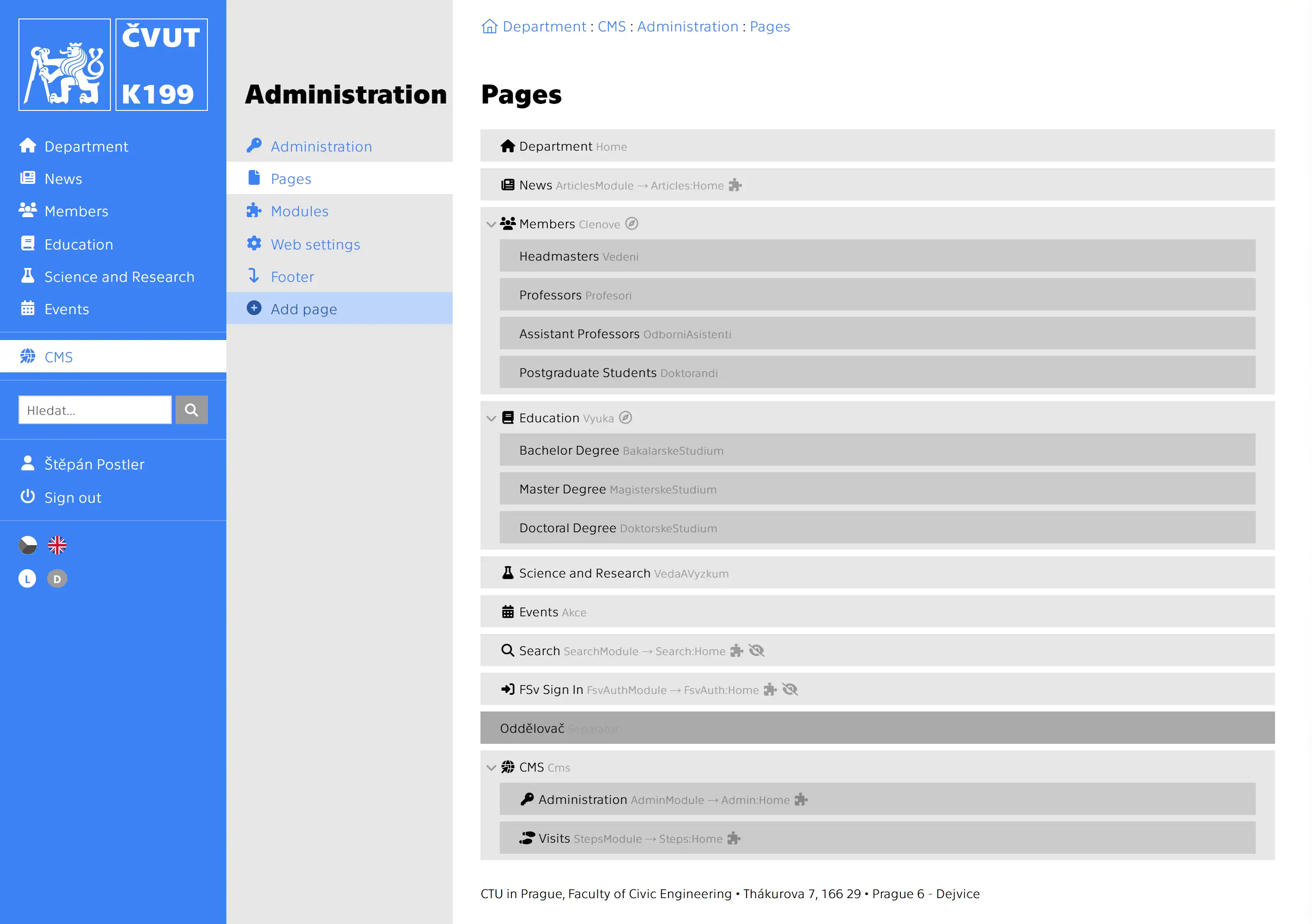
https://[DOMAIN]/en/cms/administration/pagesHere you will find a list of the pages that have been created and their structure. The menus and URL addresses of the pages are automatically generated according to this structure. A page's URL consists of the website address, the path of its parent pages and its own path. In order to access a page, the user must also have access to its parent pages. You can change the structure and order of the menus by dragging the pages with the mouse. Clicking on the page name in the list takes you to the content editor. For more complex websites, it is advisable to consider mobile devices and ensure that there are no more than seven items at the same level in the structure.
Website footer
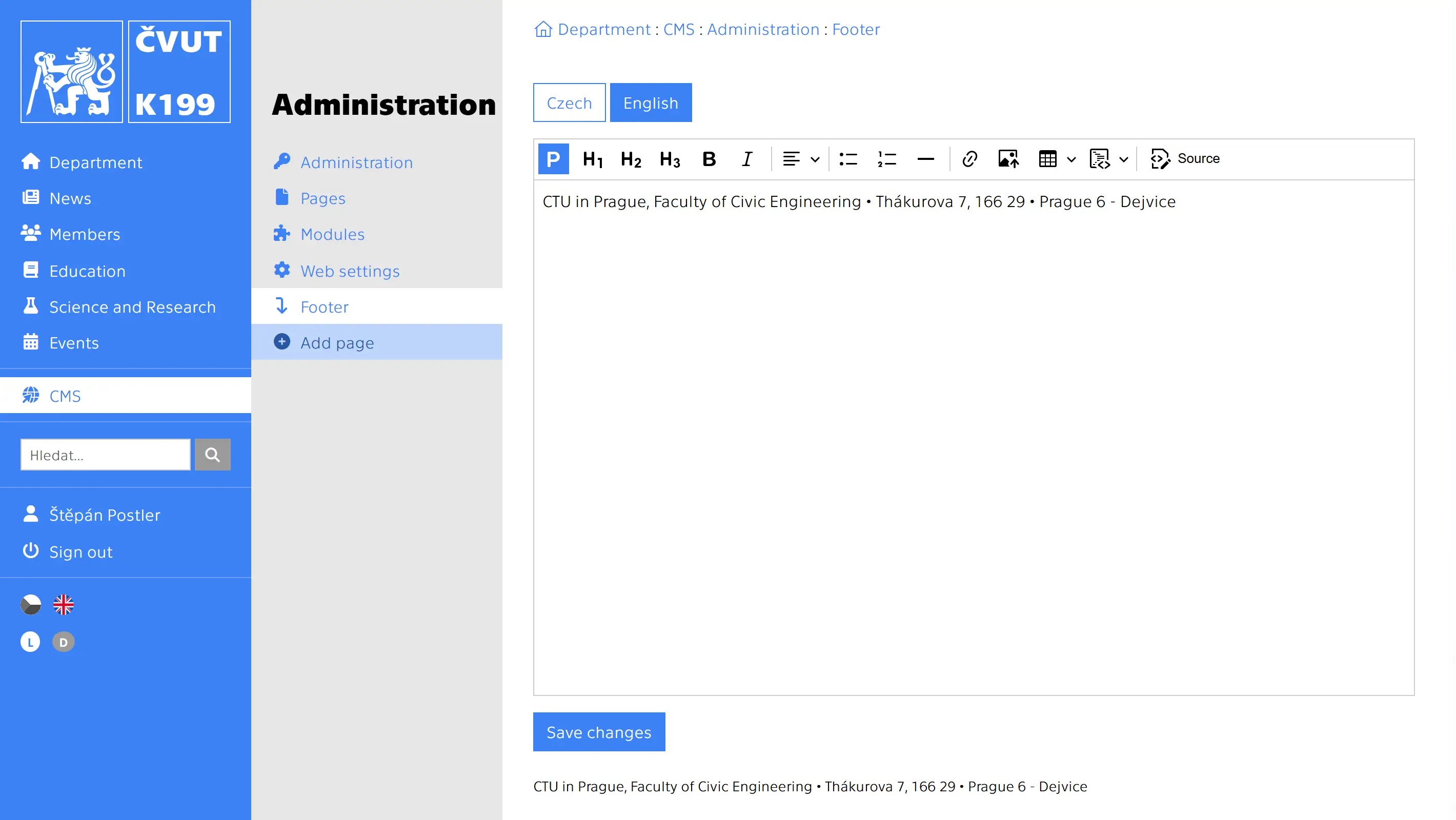
https://[DOMAIN]/en/cms/administration/footerThis is where you can customise the content displayed in the website footer at the bottom of each page.
Pages
New page/Page settings

This is where you add a new page or menu item:
https://[DOMAIN]/en/cms/administration/add-pageThis is where you edit the settings of an existing page:
https://[DOMAIN]/en/cms/administration/pages/Home/settings-
Type: In addition to content pages, the website structure can also contain other types of menu items:
- Page: Standard page with editable content.
- Internal link: A link to another page on the website. This is useful if you need to display a link to a page in a different location in the structure to where the page is actually located.
- External link: A link to a page outside the website, accessed via a URL address. An external link can also be used to link to a page anchor.
- Text: Displays text without a link in the menu.
- Separator: Displays a horizontal line in the menu (only in vertical menus).
- Module: After installing the module, a base "Module" page is created in the structure. The module pages themselves cannot be edited.
- Icon: The name of the Font Awesome icon that will be displayed next to the page name in the menus.
- Style: The color of the link in the menus.
- Image: Used when sharing the page on social networks.
- Stretched display: The page content is stretched to the full width of the window.
- Hide in navigation and buttons: The page is included in the structure, but no link to it is created in the menus.
- Provides navigation: Creates secondary navigation for this page and its subpages.
- Provides buttons: Creates navigation for this page and its subpages. To display the buttons, add
{control core-buttons}to the page content. - Ignorove parent path: By default, the URL path of a page consists of the path of its parent pages and its own path. This disables this behaviour for the given page.
-
Translations: By default, only the Czech version of the page is created. If the website has multiple language versions, the appropriate language version must be created for each page.
- Path: The part of the URL that is specific to the page. The rest of the URL is created based on the page structure. The path is written in lowercase letters, without diacritics or punctuation, and with words separated by hyphens. For example, the appropriate path for the page "About the Department" is "about-the-department".
- Text: The name of the page that will be displayed in the browser tab header or when sharing on social networks. Short names are advisable, especially for first-level pages.
- Description: A short text that will be displayed in search engine results or when sharing on social networks.
-
Requirements: This determines who will see the link to the page and who has access to it.
- Ignore parent requirements: By default, to access a page, users must have access to all its parent pages. This setting disables this behavior for the given page.
-
Show/allow for:
- Everyone
- All logged-in users
- Some logged-in users: Access for specific people and IDM roles only
- Admins: Access for site administrators only
- Only guests
Page content
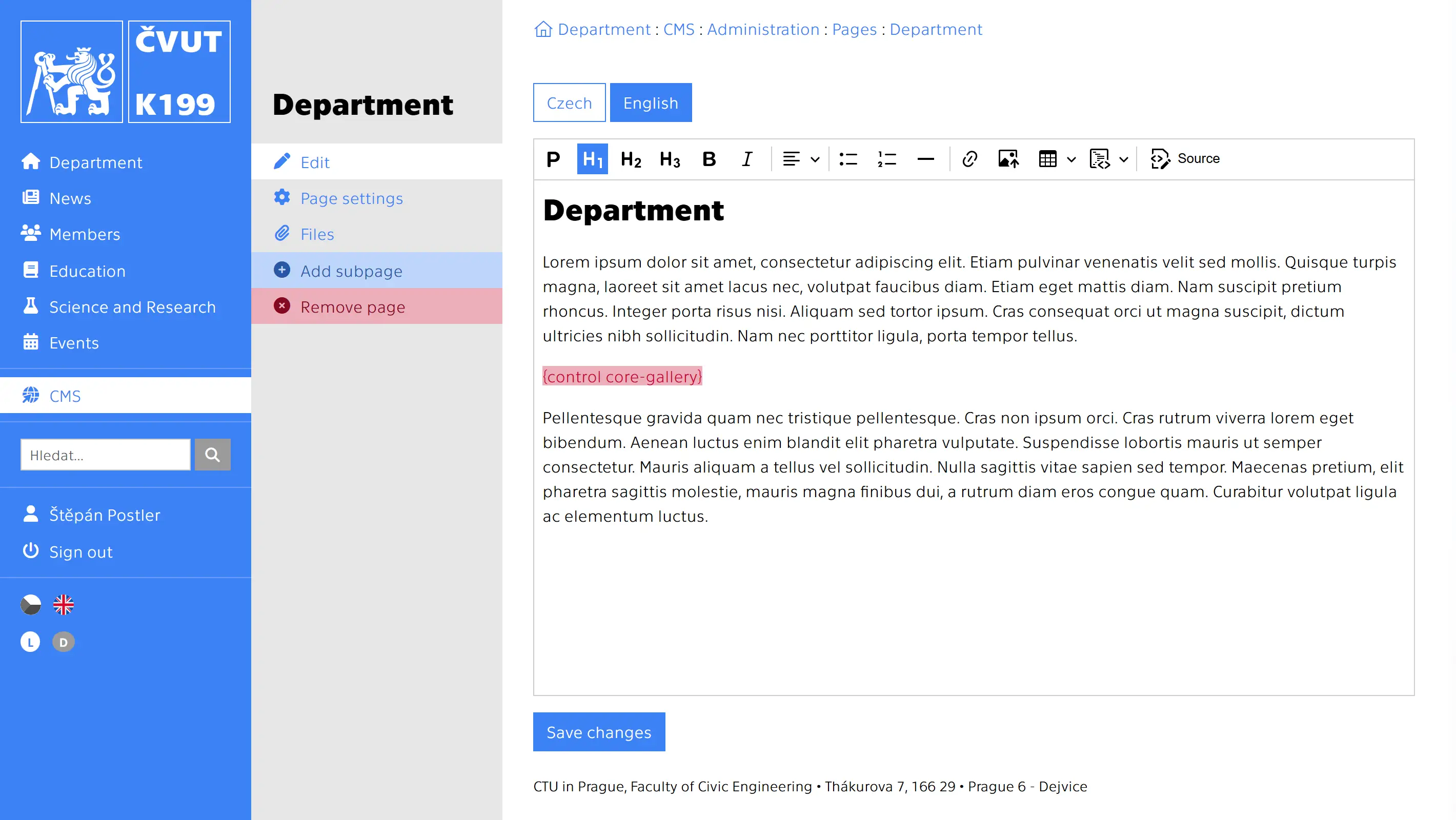
https://[DOMAIN]/en/cms/administration/pages/HomeYou can use CK editor to edit the content of the page here. Basic plugins are available for headings, paragraphs, lists, tables, and images. You can also edit the HTML code, in which you can use Bootstrap HTML classes. When structuring content with HTML, consider mobile devices and use responsive classes instead of tables. If the website has multiple language versions, you must fill in and save the content separately for each language.
Page files
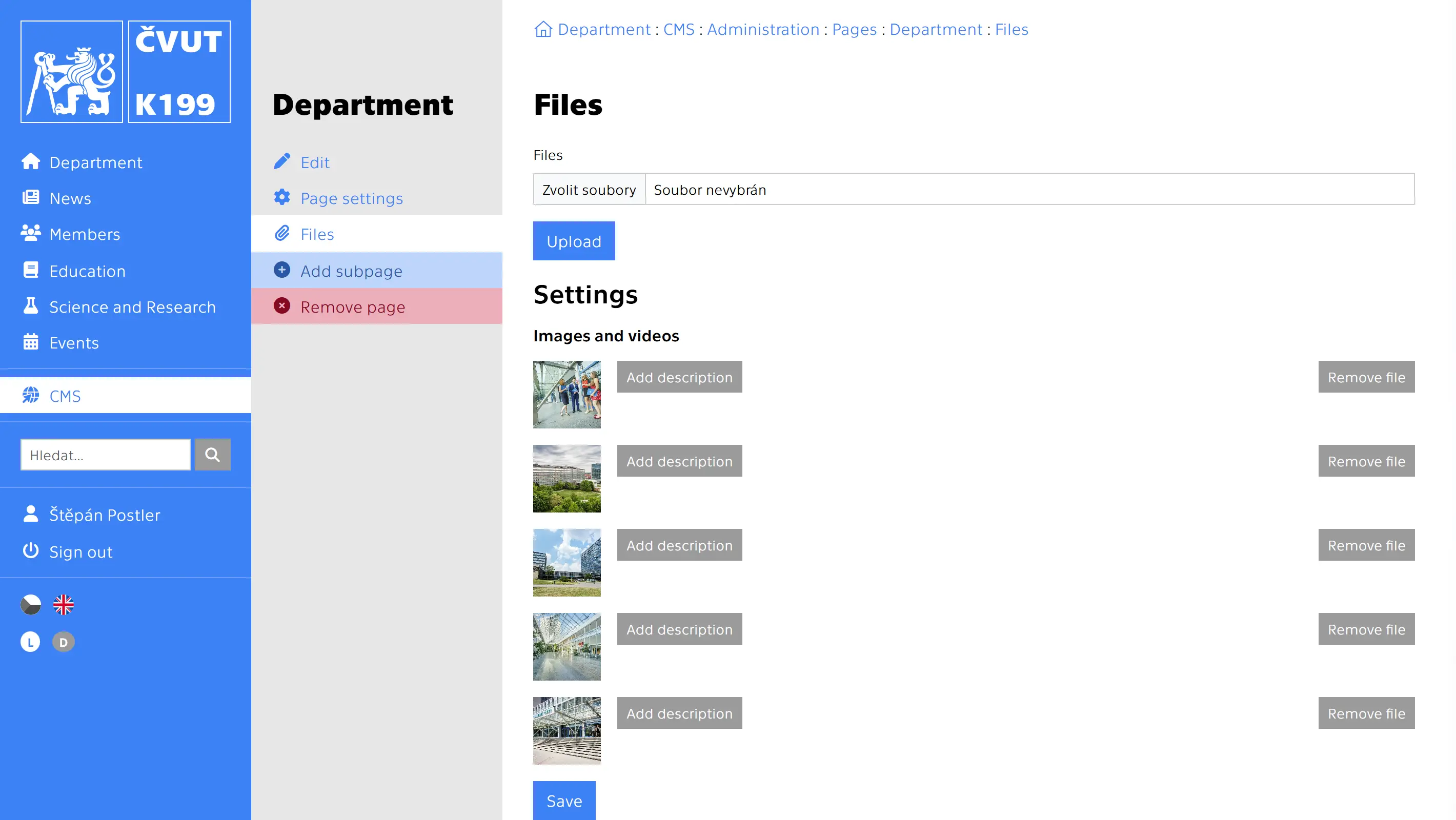
https://[DOMAIN]/en/cms/administration/pages/Home/files
You can add images and documents to the page. To display them, add either
{control core-gallery} or
{control core-documents}.